Creating a New Menu in Armonic CMS
This user manual will guide you step by step through the process of creating a new menu in the Armonic CMS administration panel.
Accessing the Menu Creator
Navigate to the Armonic CMS administration panel.
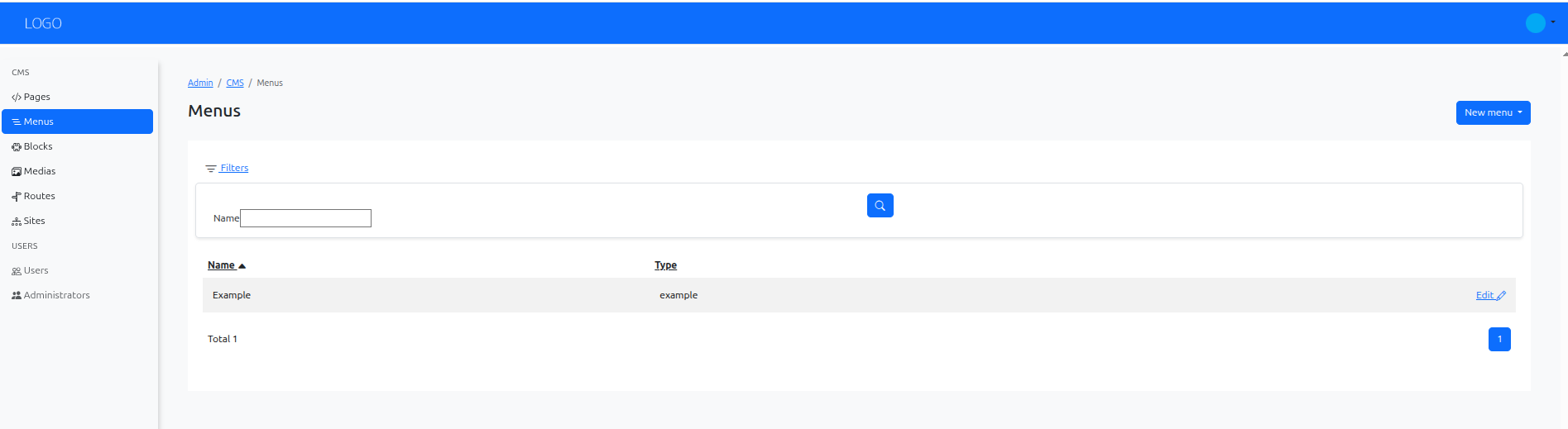
In the left sidebar, locate the CMS/Menus section.
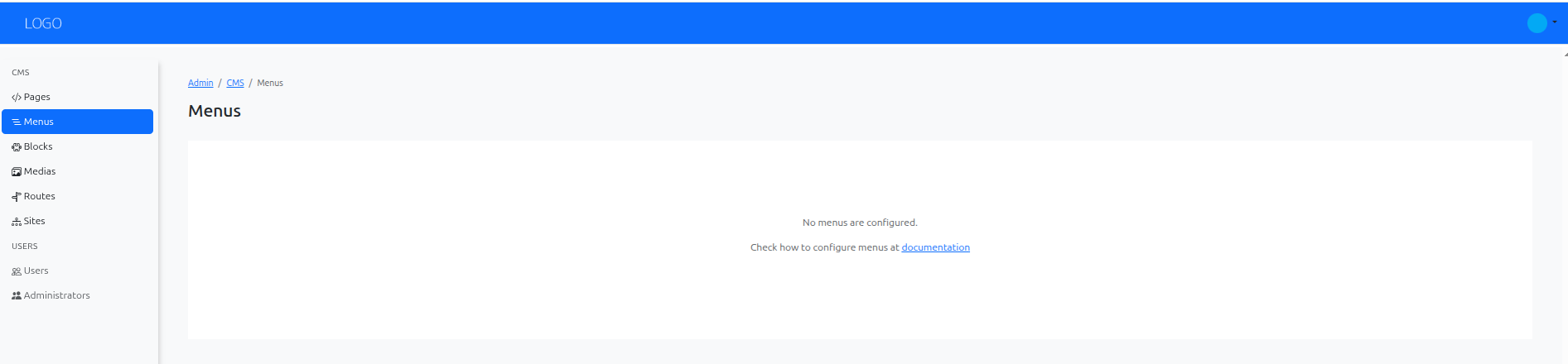
First, you can see that you don't have any menus configured yet.
To configure menu types, see the Menu Configuration (cms menus) section.
Once you have configured a menu (in our example, the ‘main’ menu), look for the ‘New menu’ button in the top-right corner of the ‘Menus’ section.
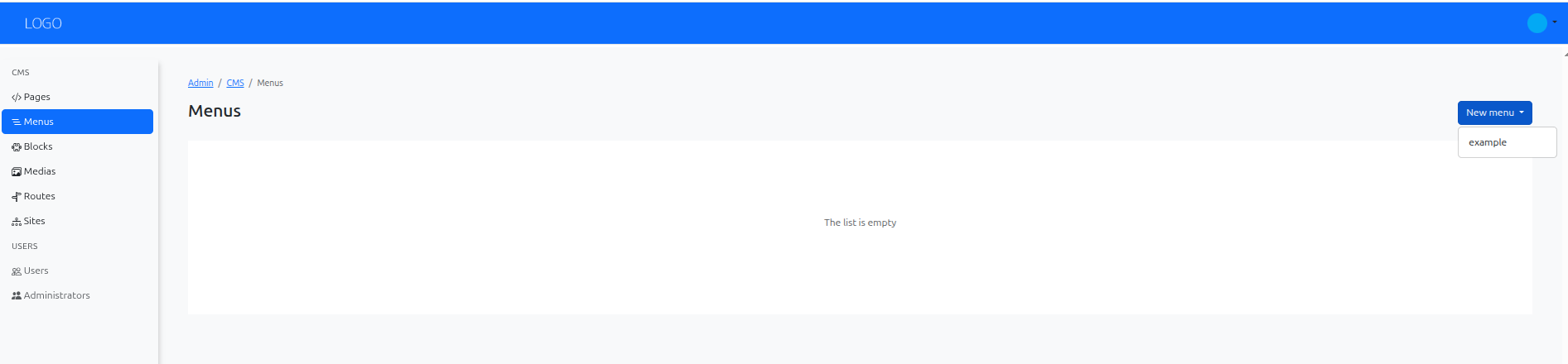
Choose the type of menu you want to create from the dropdown menu. The available menu types will depend on the modules installed in your Armonic CMS instance.
Filling Basic Information
Complete the basic fields or the custom fields for the menu type you selected.
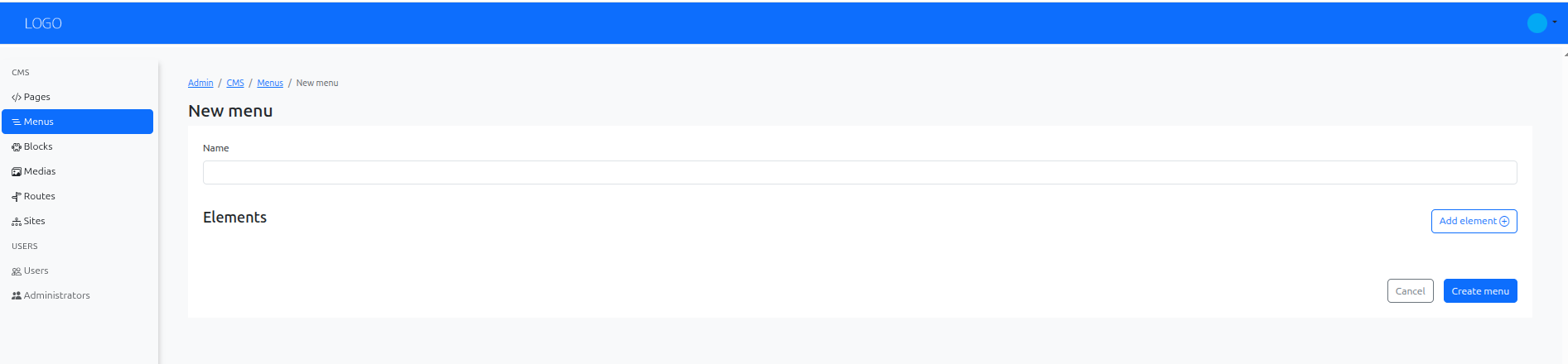
You can add elements to the menu by clicking the ‘Add element’ button. Each element can have a basic field.
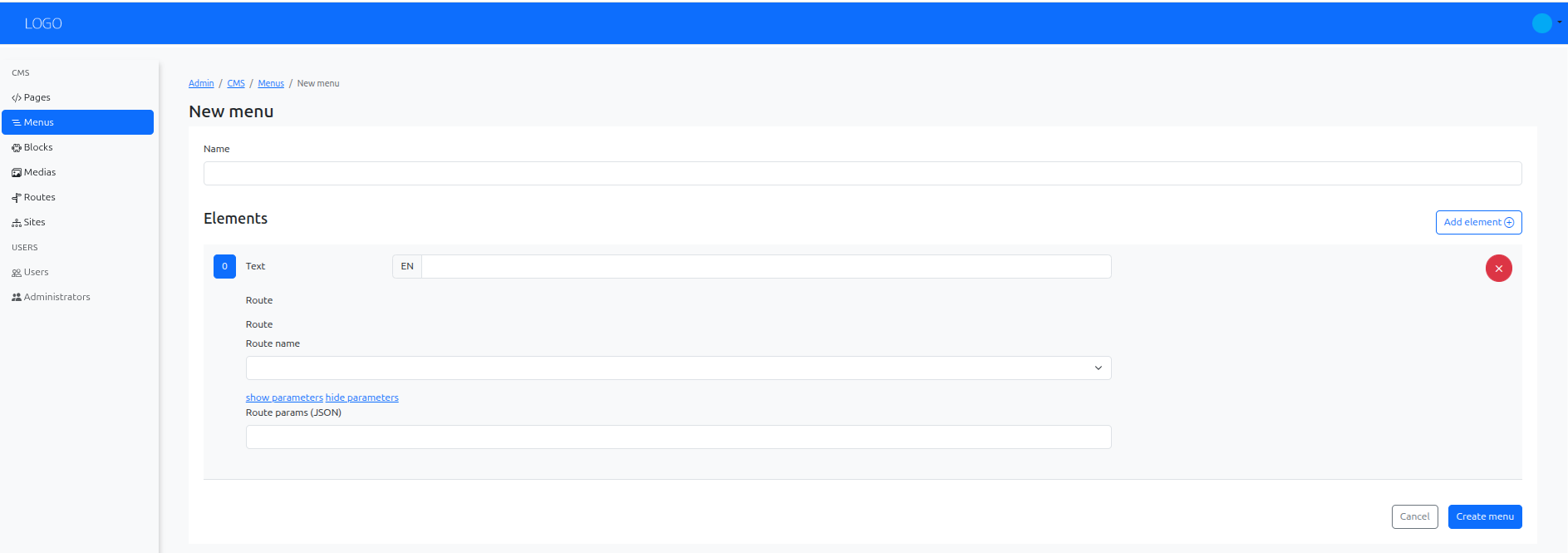
Save, view and edit the menu
After filling in the necessary information, click the ‘Save’ button to create the menu.
Once saved, you can view the menu details, edit its content, or delete it if needed
Using the Menu in Pages
Creating a menu does not automatically place it in a page layout.
To render it in a page, add it in a module/menu slot from the page editor.
See Adding modules or blocks for the full workflow.