Add modules or blocks to a page
Modules hold a page's editable content: headings, text, images, grids, or project-specific elements. A shared block holds content managed once and reused in several places.
The modules offered by the editor depend on the layout, content type, and project configuration. The screenshots show the standalone demo's translatable rich-text module.
Open the content editor
Open CMS / Pages, find the page, and choose Content. You can also open View and use its Content tab.
Choose the version and layout you want to edit. A layout defines named areas such as main; each area can restrict the modules allowed inside it.
Insert a module
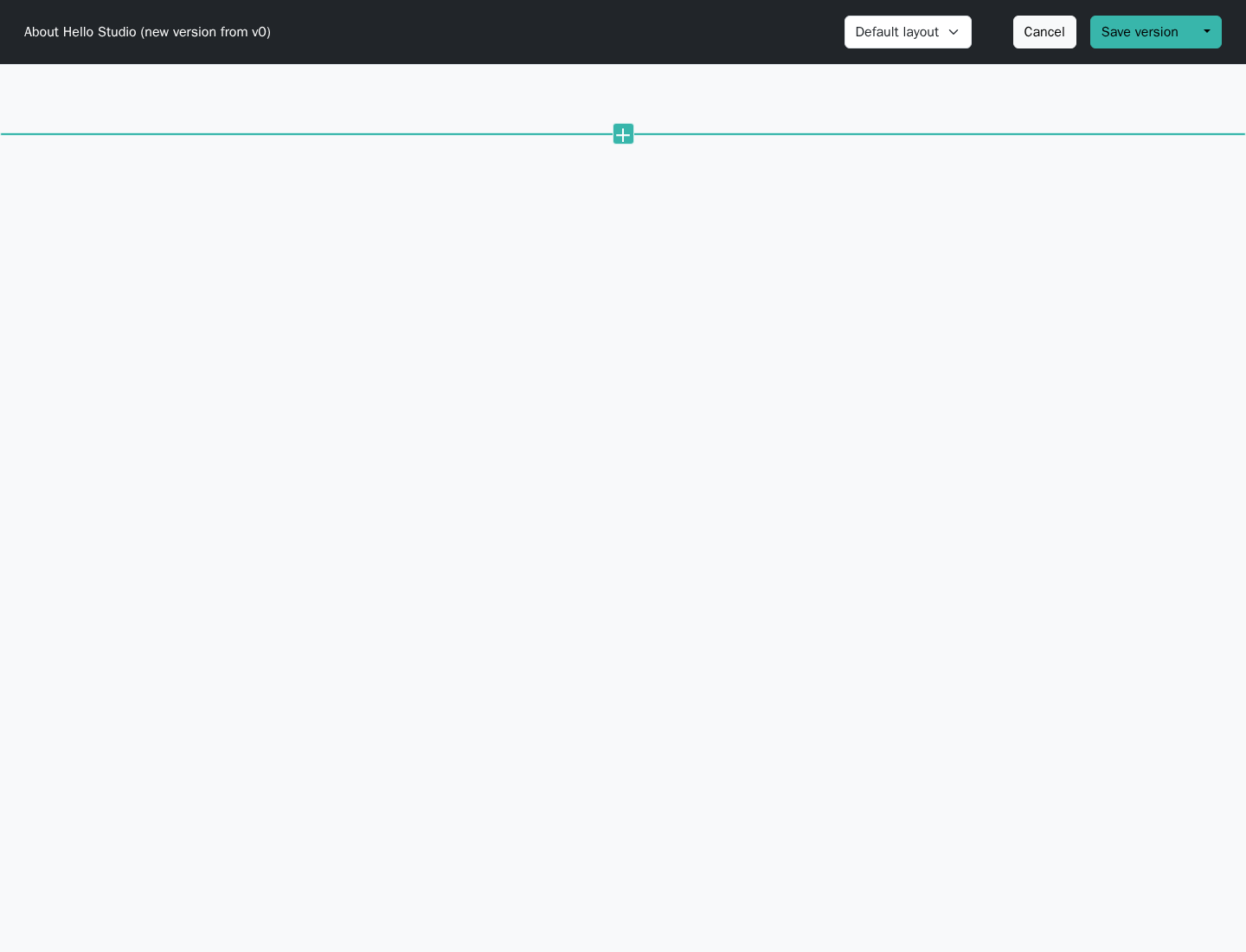
Move the pointer over an editable area and use its insert control:
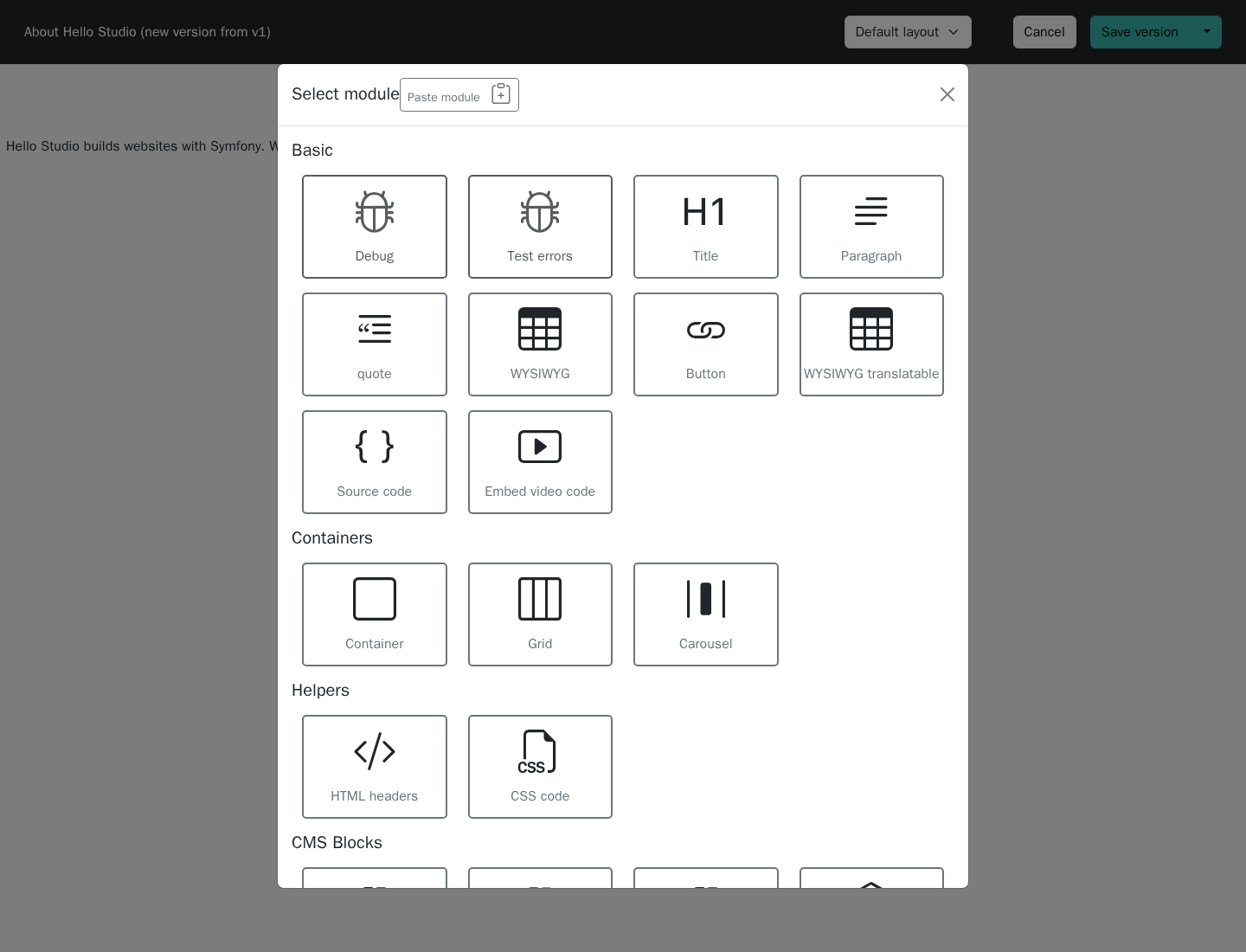
Choose a module from the picker:
Select the module in the page to open its settings. For a translatable text module, enter the content in every language enabled for the page.
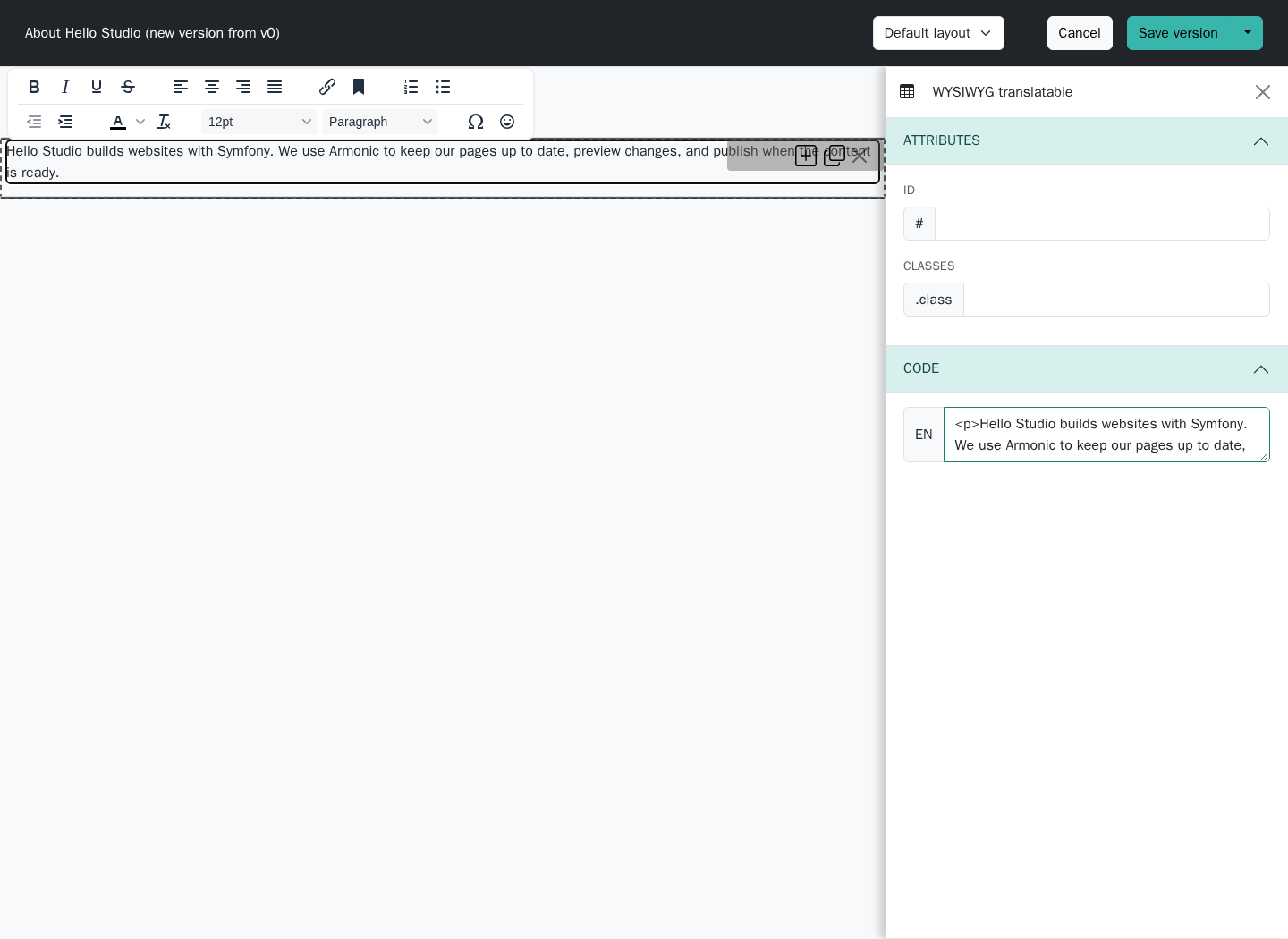
Common settings include:
- Content fields: the text, media, links, or other values defined for this module.
- Language or site filters: where the module appears, when the module provides these filters.
- Attributes: optional HTML identifiers or CSS classes for the site's existing styles.
- HTML/code fields: available only in modules designed for that purpose. Use them when you understand the resulting markup.
The editor preview helps with composition. Use the page preview before publishing to check the final layout and links.
Insert shared content
To reuse an existing block, insert the Block instance module and select the block record. The name of this module can be customized by the application.
Create the record first under CMS / Blocks if it does not exist. Reusing the same record means that later block edits affect every page that renders it; copying a module's text into several pages creates separate values instead.
See Create a block for the full flow.
Save and review
Use Save version to keep a draft, or its dropdown to choose Save and preview. Verify text, media, links, and each language. Publishing is a separate action; see Preview and publish.
If a module is missing, ask a developer to check the layout restrictions and enabled module types. Adding a record in the CMS does not install a new module type.