Create a page
A page has an internal name, one or more public routes, and editable content versions. Creating it starts a draft; it does not publish the page.
The screenshots use the Armonic 6.0 standalone demo. Your application's page types, sites, fields, and available actions can differ.
Open the page creator
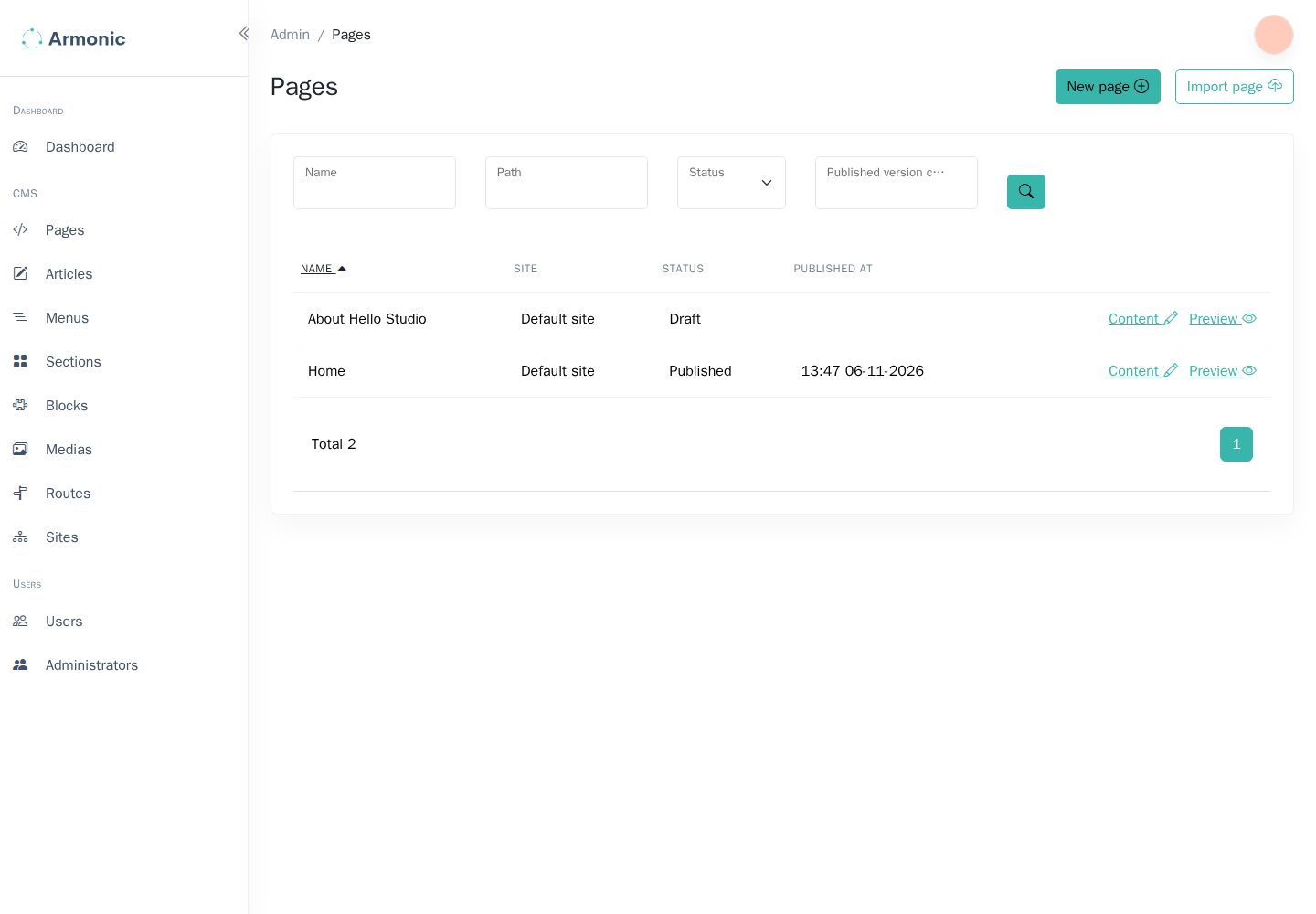
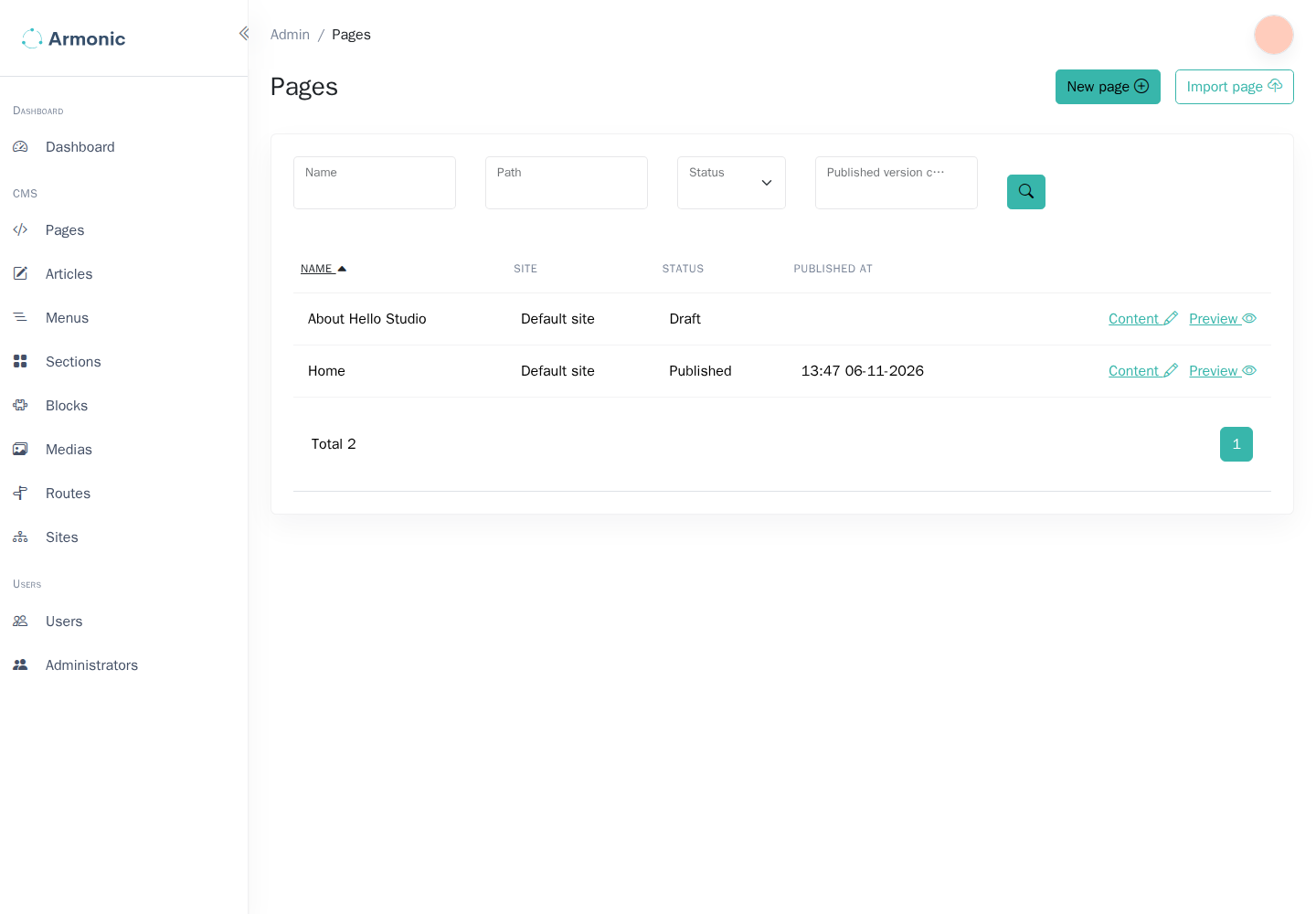
Open CMS / Pages in the sidebar, then choose New page.
Enter the page details
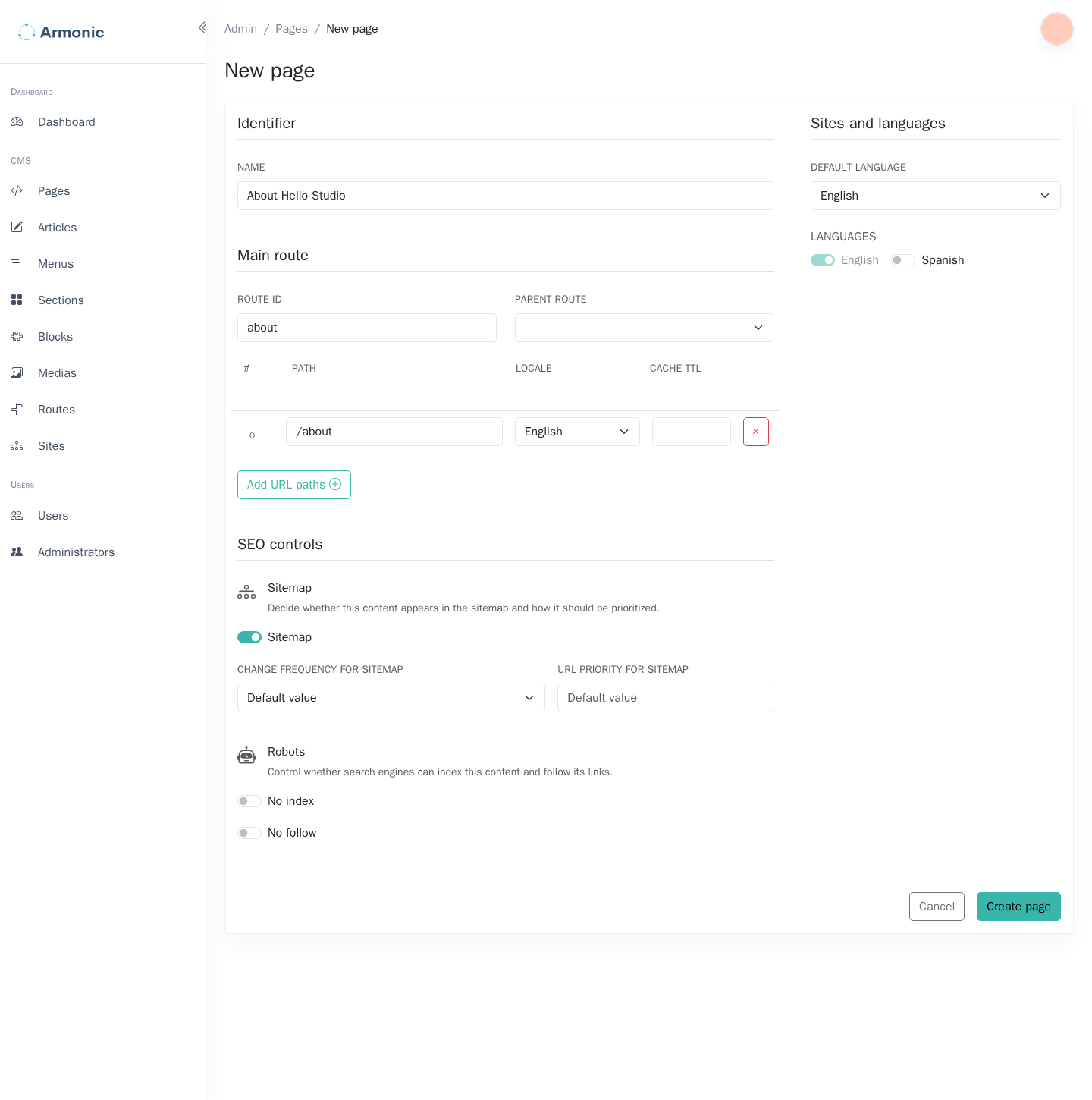
For an About page, use an internal name such as About, a route identifier such as about, and a URL path such as about.
| Field | What to enter |
|---|---|
| Name | A name editors can recognize in lists. It does not automatically become the page heading. |
| Sites | The configured sites that can use this page, when this field is shown. |
| Route identifier | A unique internal route name used by menu links and templates. It is distinct from the public URL path. |
| Parent route | An optional parent used to organize nested URL paths. |
| Path | The page's path within the selected site's language path. |
| Default language | The primary language used by this page. |
| Additional languages | Other enabled languages for which editors will provide content. |
For example, about below an English site path /en/ becomes /en/about. The page's displayed name and route identifier need not match this path. Keep the route identifier stable once other pages and menus refer to it.
Choose indexing options
- No Index asks search engines not to index the page.
- No Follow Links asks crawlers not to follow its links.
- Add to Sitemap includes the page in the configured sitemap. The frequency and priority are hints for crawlers.
These settings guide crawlers; they do not restrict access to a published page. Use your application's access controls for private content.
Create the draft
Choose Create page, then open the content editor if it is not opened automatically. Select a layout and add modules or blocks.
Before publishing, review the route, each enabled language, and the SEO title. The page becomes available to visitors only after a content version is published.